Run your Android handhelds, tills and tablets from one console
Add devices by QR code or over USB, keep them in the app your staff use, install your own APKs and look at a screen when something breaks. Your Windows PCs live in the same fleet. MDM comes with every Tenvo plan.
Android 7.0 or newer · No Google services needed · Nothing to host
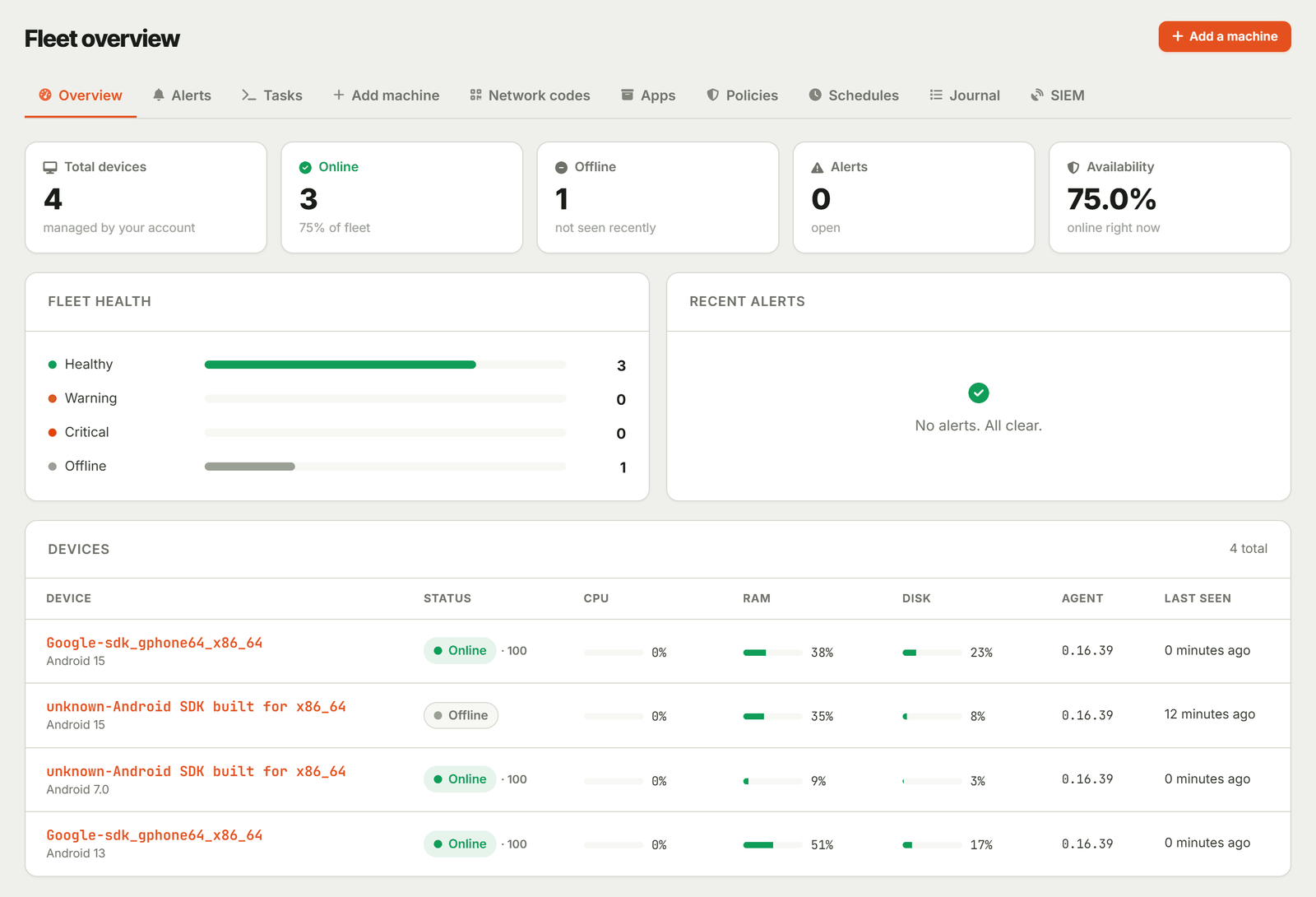
Devices that live on counters and shelves, not on desks
Small and mid-size chains where nobody from IT can drive out to every location.
Parcel pickup points
Scanners and tablets at every point set up the same way and kept in the pickup app. A new location joins with one QR code.
Restaurants and cafés
Order tablets and kitchen screens locked to one app, so they stay on the menu and off everything else.
Regional retail and warehouses
Handheld terminals, price checkers and POS tablets across stores. See which device runs which app version, how its battery is holding up and which SIM is inside.
Three ways to add a device
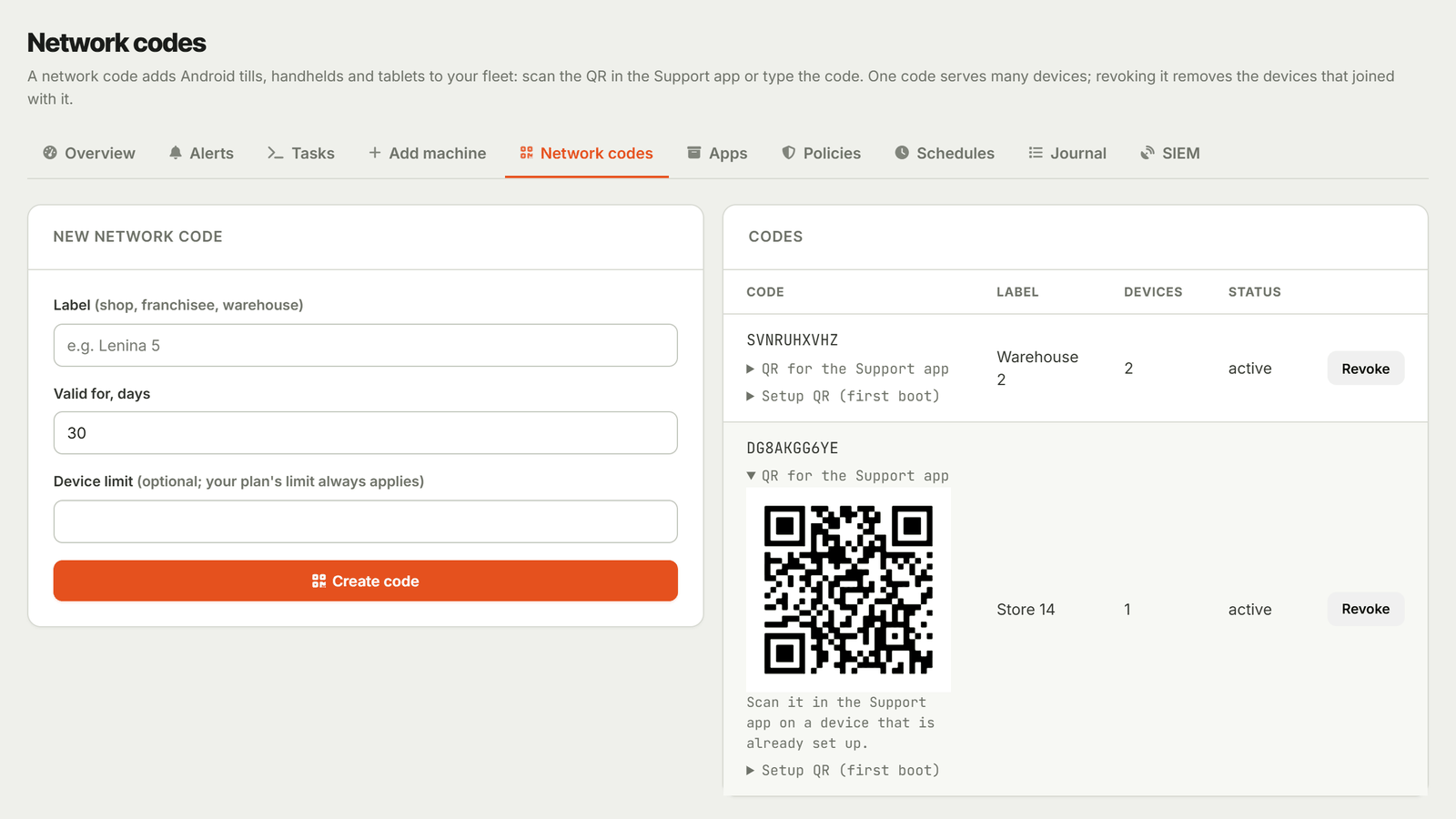
Full management needs Android's device-owner mode. Android grants it to a device right after a factory reset, or over USB to a device with no accounts on it. When a reset is not an option, a device can still join with a network code.
- Way 01
QR code at first boot
On devices with Google services, and on handhelds whose setup wizard reads QR codes: factory-reset the device, open QR setup on the welcome screen (on most devices: tap it six times) and scan the setup code from your console. Android downloads Tenvo Support and makes it the device owner; after Android's own setup screens the device joins your fleet by itself.
- Way 02
USB helper
The way for handhelds without Google services, whose setup wizard has no QR setup, and for devices already in use but without accounts. Plug the device into a computer and run the helper with your network code: it installs Tenvo Support, makes it the device owner and passes on the code. Tested on Android 7 and 15 without Google.
- Way 03
Network code, no reset
Install Tenvo Support and scan or type the network code. The device shows up in your fleet with its inventory, and you can open its screen once the person there taps Accept. Kiosk, apps, lock, location, policies and the other commands need device-owner mode.
From the console, without a trip to the store
Commands go into a queue. A device that is switched off picks them up when it comes back, and every command reports back: done, or the reason it could not run.
Remote lock with a return contact
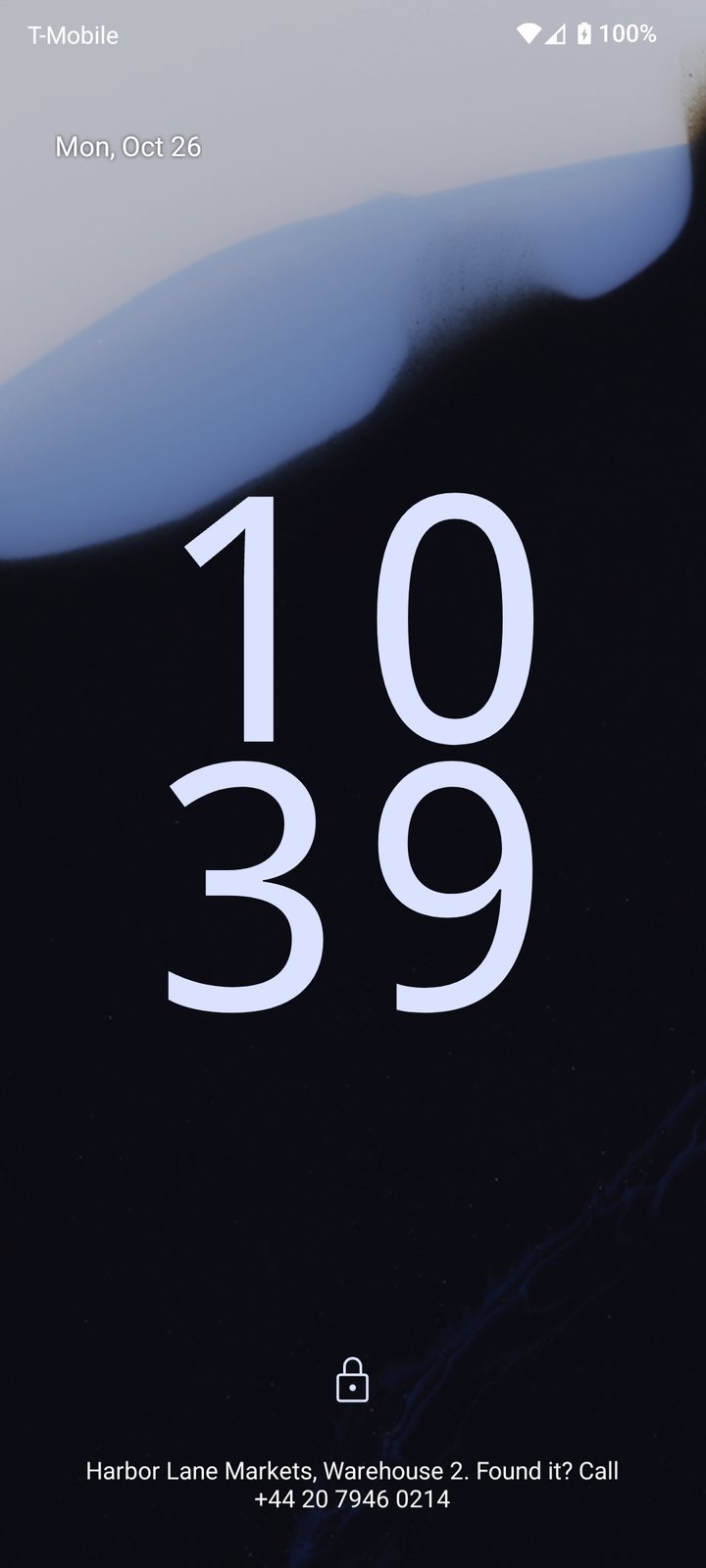
Lock the screen of a device that went missing or should not be used right now, and set its screen-lock PIN from the console. Your contact for returning the device shows on the lock screen among the system messages; the device needs a PIN or another screen lock.
Reboot
Restart a frozen terminal from the console instead of asking someone at the store to hold the power button.
Inventory
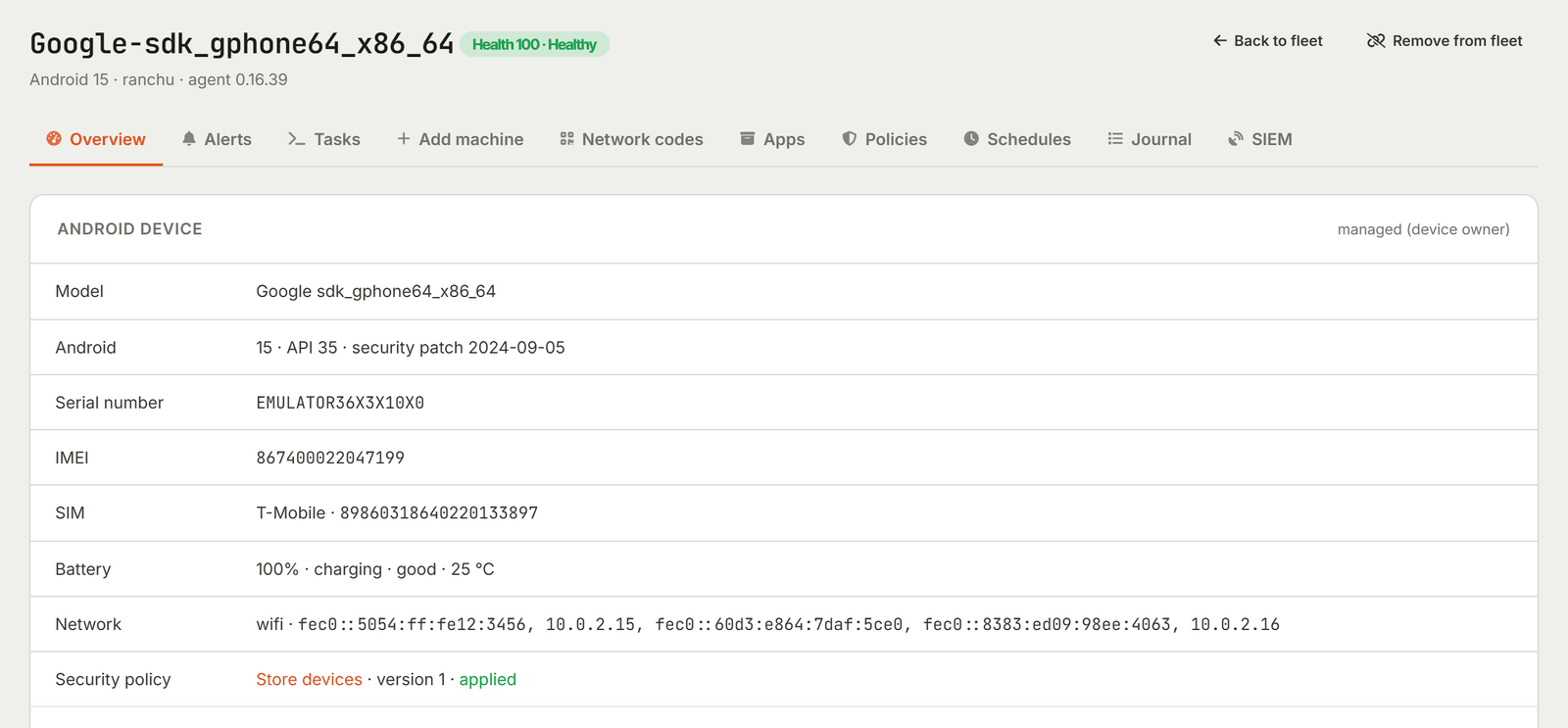
Model, serial number, IMEI, SIM operator and ICCID, Android version and security patch, battery level and health, network, and the installed apps with where each one came from.
Your own app store
Upload your APKs, up to 200 MB each. Tenvo reads the package name, version and signing certificate from the file, and devices download only from your account.
Install, remove, hide, pause
Install an app silently, uninstall it, hide it or suspend it, and stop staff from removing the apps you need. For an app from a store, open its store page on the device.
Screen access
Open the screen of any Android device in your fleet from the Tenvo app to see what the person sees and walk them through it. They tap Accept on the device to let you in.
PCs in the same fleet
Windows computers with the Tenvo agent sit next to your Android devices: health, inventory, scripts and processes. One list, one device limit, one place to look.
When a device goes missing
Lock it with your return contact, find out where it is, and if it is not coming back, reset it. Every one of these asks for confirmation in the console first.
Location now or on a schedule
Ask a device where it is right now, or turn on tracking every 5 to 1440 minutes. While tracking is on, the device shows a permanent notice that it shares its location. Points taken offline arrive when it reconnects, and the console keeps 90 days of history with a link to the map.
SIM change alert
The device remembers the SIM cards inside it. When one is replaced, an alert appears in the console within about five minutes, and you can have the device lock itself until you release it from the console or with a password on the device.
Factory reset
When a device is gone for good, reset it to factory settings from the console. You confirm by typing the device's name and giving a reason. The device acknowledges the command, Android performs the reset, and the device leaves your fleet.

Set it once for every device
Policies, schedules and the journal work for the whole fleet, and schedules and the journal cover your Windows PCs too.
Policies
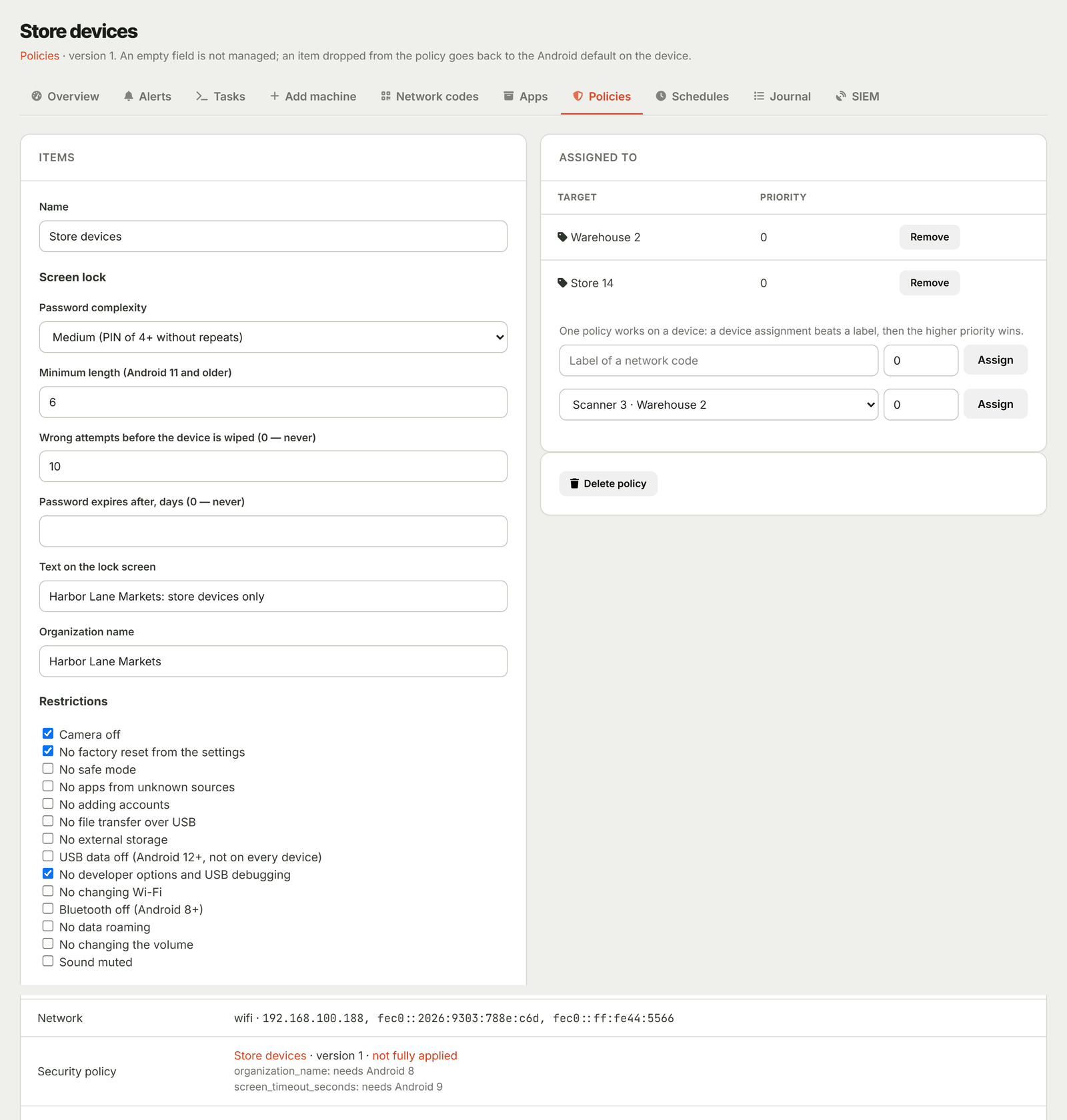
One profile per device or per label: screen lock rules, Wi-Fi networks, camera, USB and debugging, factory reset from Settings, new accounts, system updates, screen timeout and more. Each device reports item by item what it applied and what its Android version cannot do.
Schedules
Run a command on a timetable in your time zone, for Android devices and PCs alike: reboot the tills every night, check locations every hour. A missed run happens once, not in a burst. A factory reset and a PIN change are never scheduled.
Journal
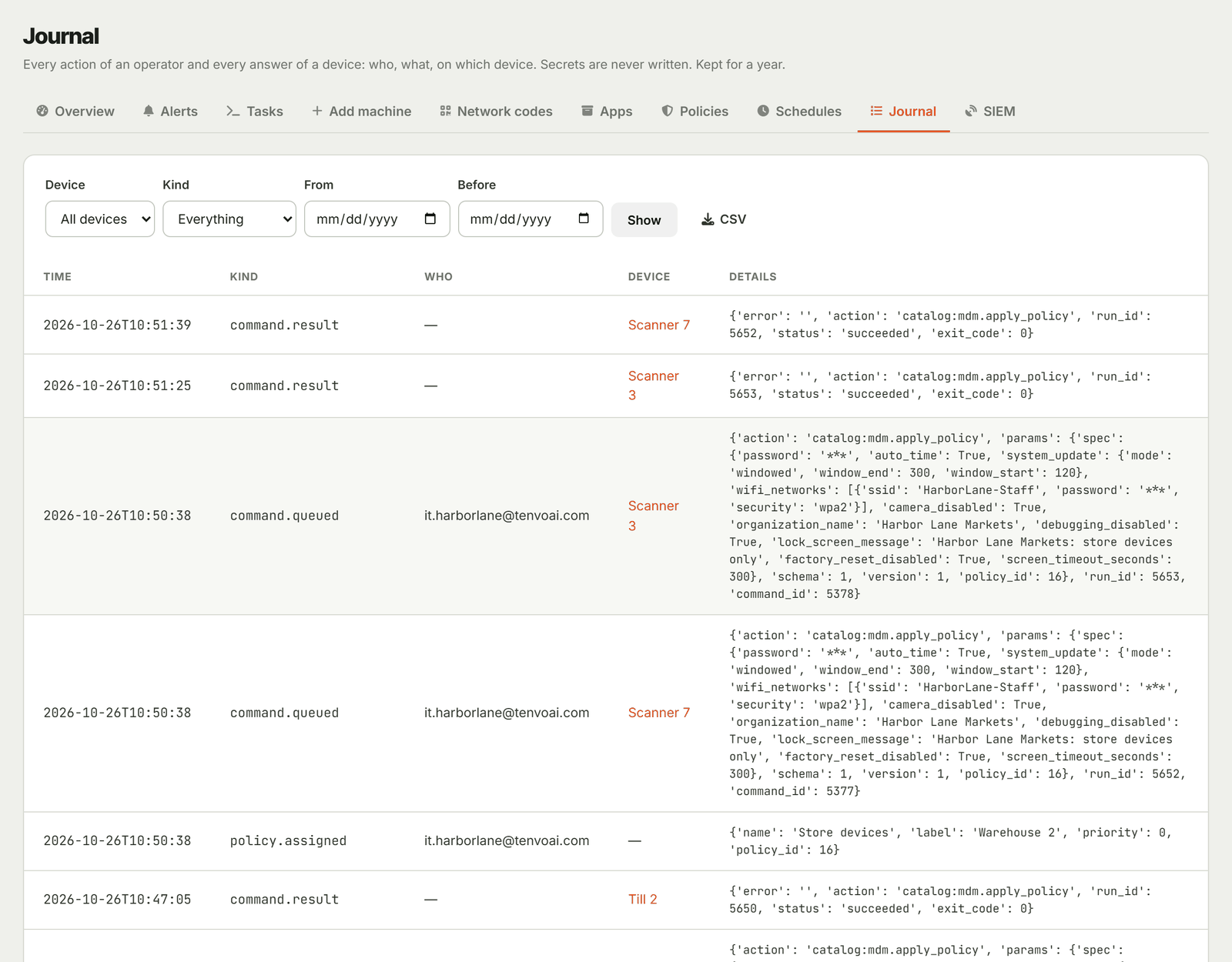
Every command, confirmation and device answer is recorded with who did it, along with the device's own events: kiosk exits by password, wrong PINs, reboots. Kept for a year and exported to CSV. PINs and passwords never go into it.
SIEM export on Pro
On the Pro plan, send the journal to your SIEM over syslog with TLS (CEF) or to an HTTPS webhook signed with HMAC-SHA256. A delivery that fails is retried for up to 7 days.
One app on screen, and nothing else
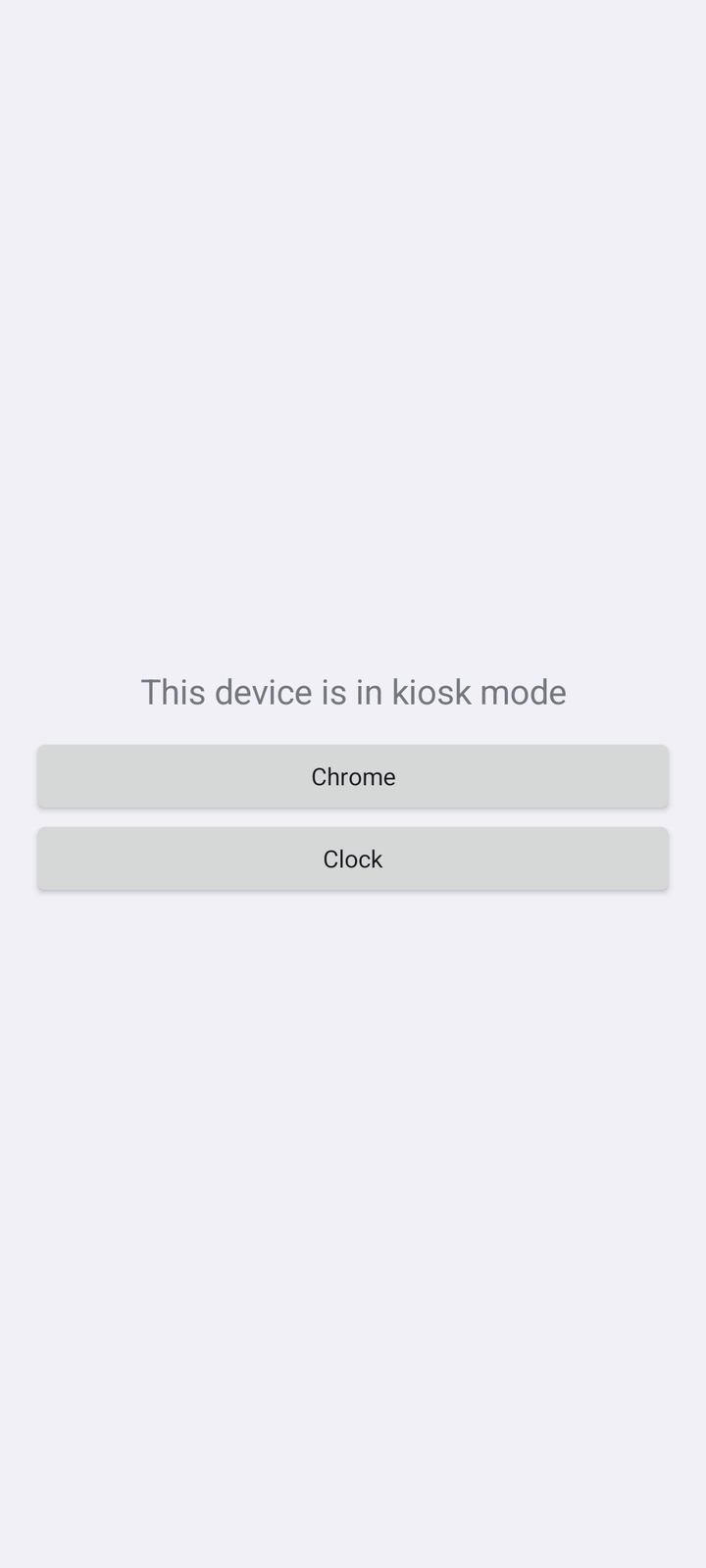
Lock a device to a single app or a set of up to ten. Staff cannot switch to other apps or wander into settings.
Out for a few minutes
Release a device from the console for 1 to 240 minutes, for a stock count or a fix. When the time is up, the kiosk comes back by itself.
Exit password for managers
Set a password and a manager can step out of the kiosk on the device for the time you chose, 15 minutes by default. Only a salted hash of it is stored; the password itself never reaches the device.
You can always lift it
Tenvo Support stays allowed in every kiosk and keeps listening to the console, so you can release or remove the kiosk remotely at any time.
Choose what stays visible
On Android 9 and newer you decide whether the status bar, notifications, Home and the recent apps button stay available. On Android 7 and 8 the kiosk is fully closed.
Commands you can trust
Signed and addressed
Every command is signed by your console and checked on the device, and a device only accepts commands addressed to it.
Asks before it hurts
Lock, PIN, reboot, uninstall, kiosk, location tracking and SIM rules ask for confirmation in the console before anything is sent. A factory reset also needs the device's name typed in.
Never locks you out
The console refuses to uninstall or hide Tenvo Support itself, so one wrong click cannot cut you off from a device.
MDM is part of your plan, not an add-on
There is no separate MDM license and no per-device MDM fee. Android devices and computers count toward the same device limit of your plan.
Free
MDM includedTry MDM on your own devices. Personal, non-commercial use.
Lite
MDM includedFor a few stores or pickup points. Commercial use.
Pro
MDM includedFor a chain: 200 devices, 3 concurrent sessions, session recording and SIEM export.
What a device needs
- Android
- 7.0 (API 24) or newer
- Processor
- 32-bit and 64-bit ARM (armeabi-v7a, arm64-v8a)
- Google services
- Not needed. Plain Android without Google has no QR setup at first boot, so use the USB helper or a network code there
- Full management
- Device-owner mode: a factory reset with QR setup (where the setup wizard supports it), or USB on a device without accounts
- Network
- Internet access over HTTPS. No server or VPN on your side
- App
- Tenvo Support, the same app people use to get help on Android
Questions before you start
Do I have to factory-reset my devices?
Only for full management. Android grants device-owner mode to a device right after a factory reset (QR setup), or over USB to a device that has no accounts on it. A device that joins with a network code keeps its data and gets inventory and screen access, without kiosk or app control.
Does it work on devices without Google Play services?
Yes, Tenvo Support does not need Google services. QR setup at first boot comes from the setup wizard, though: plain Android without Google has none, and on handhelds it depends on the manufacturer's firmware. For those devices use the USB helper, tested on Android 7 and 15 without Google.
Is MDM really included in the Free plan?
Yes, every plan has MDM, and there is no MDM license on top. Free is for personal, non-commercial use with up to 30 devices, which is enough to try it. Lite and Pro are the plans for business use, with 50 and 200 devices.
What happens if a device is offline when I send a command?
The command waits in the console and runs when the device next checks in. Every command reports back, either done or with the reason it could not run, such as a device that is not in device-owner mode.
Can staff leave kiosk mode?
Only if you let them. Set an exit password in the console, and a manager can release the device on the spot for the time you chose, 15 minutes by default. You can also release a device from the console for up to four hours. Without a password, only the console can release it.
Do I need my own server?
No. Tenvo runs in the cloud. Devices only need internet access over HTTPS, and your Windows PCs report to the same console.
What can I do about a lost or stolen device?
Lock it with your return contact on the lock screen, ask where it is or turn on tracking, and as a last step reset it to factory settings from the console. A SIM change alert can also lock it for you. All of this needs device-owner mode.
Put your first device in the fleet today
Create a network code in the console, then add devices by QR at first boot, with the USB helper, or with the code itself.