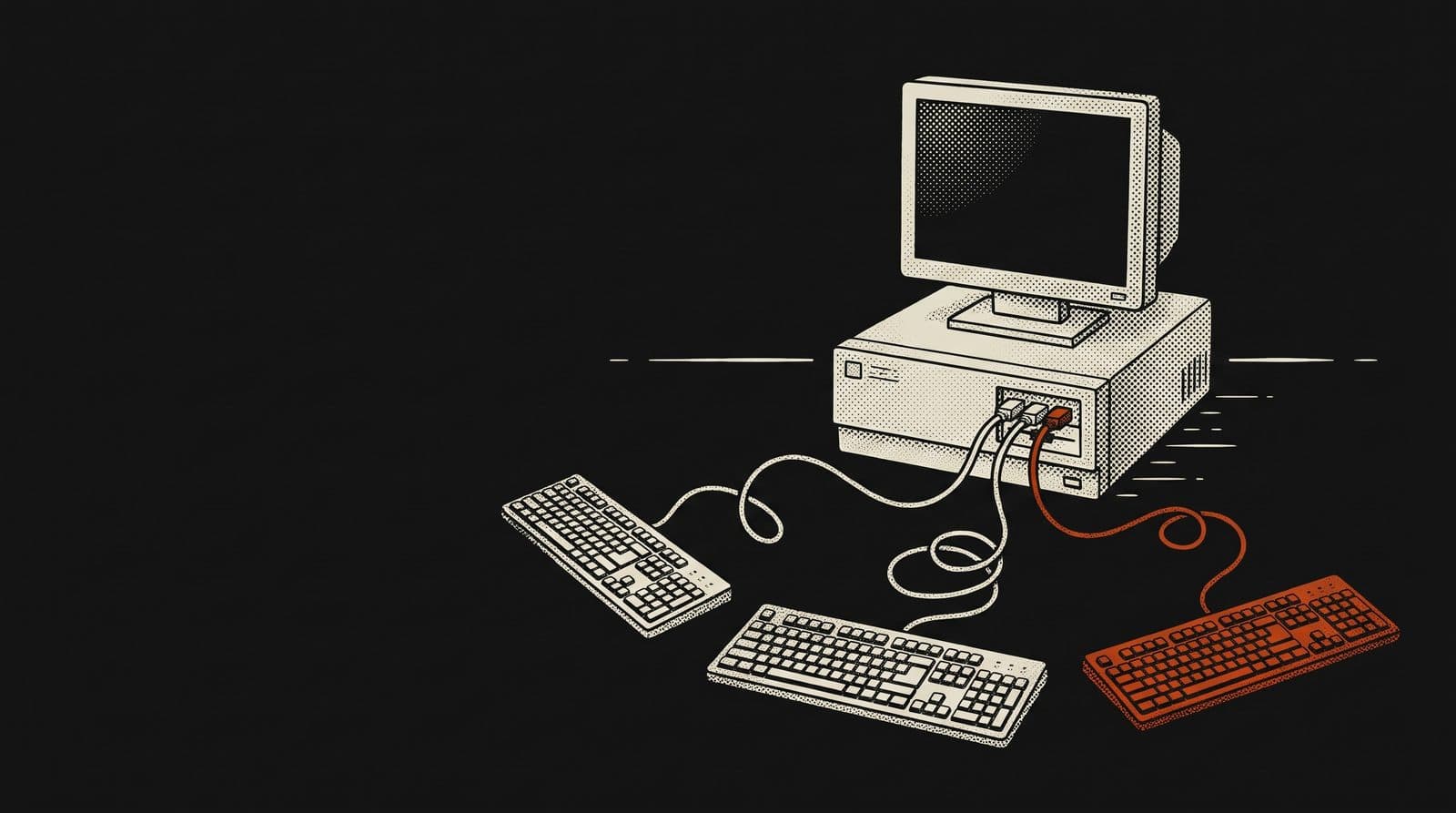
The request usually arrives in one sentence: three people need the accounting PC, or the CAD workstation, or the one machine with the old inventory app that nobody dares reinstall.
The request usually arrives in one sentence: three people need the accounting PC, or the CAD workstation, or the one machine with the old inventory app that nobody dares reinstall. The reflex answer in a Windows shop is a terminal server: put Windows Server on a box, turn on Remote Desktop Services, and let everyone log in at once. Sometimes that is exactly right. Often it turns a small access problem into a licensing project, a compatibility test and a box exposed to the internet on port 3389. This article is about telling those cases apart, and about what to do when multi-session Windows is the wrong answer.
What a terminal server actually is
A terminal server is a Windows Server machine with the Remote Desktop Session Host role installed. Each user gets their own session on the same operating system: their own desktop, their own profile, their own copy of the running applications, all sharing one CPU, one pool of RAM and one disk. Microsoft calls the whole stack Remote Desktop Services (RDS). Around the session host you can add a Connection Broker to spread users across several hosts, an RD Gateway so the sessions can be reached over HTTPS instead of raw RDP, and an RD Web Access page for published apps.
The model is old and solid. The trouble is that it was designed for a specific shape of problem, many people running the same well-behaved application all day, and most "several people need this machine" requests are not that shape.
The costs that show up after the decision
The first cost is licensing, and it is layered. You need a Windows Server licence for the host, licensed per core. On top of that, every user or device that connects needs an RDS Client Access Licence, bought separately from the ordinary Windows Server CAL. Windows gives you a 120-day grace period before the licensing server has to hand out real RDS CALs, which is why so many small terminal servers work fine for four months and then stop accepting connections on a Monday morning.
The second cost is the applications. Microsoft 365 Apps on a session host need shared computer activation, which is only available on certain plans (Business Premium and the E3/E5 tiers, not Business Standard). Many smaller vendors license per machine, not per user, and their terms either forbid multi-session use or price it as a server licence. Some applications write settings to HKEY_LOCAL_MACHINE or into their own Program Files folder, so two users running them at once overwrite each other. Others allow only a single instance per machine, rely on a USB dongle plugged into that one box, or expect a dedicated GPU that the session host does not give each user.
The third cost is operations. A terminal server is a server: it needs patching on a schedule, profile management (FSLogix or roaming profiles) so that logons do not take three minutes, antivirus tuned for many users, printer drivers that behave in multi-session, and someone who notices when one user's runaway Excel macro is eating the CPU for everyone else. Our breakdown of multi-session remote desktop covers the resource side in more detail.
The fourth cost is exposure. A session host that people reach from home either sits behind a VPN or an RD Gateway, or, in too many small offices, has 3389 forwarded straight to it. Port 3389 on a public address is found by scanners within hours and then hammered with password guesses around the clock; see RDP brute-force attacks for what that traffic looks like and why account lockout alone does not stop it.
The shortcut that is not one: multi-session on Windows 10 or 11
Somebody will suggest skipping the server entirely: patch termsrv.dll or install RDP Wrapper on an ordinary Windows 11 Pro PC so that it accepts several RDP sessions at once. It works until the next cumulative update replaces the DLL, and it is a breach of the Windows client licence, which allows one interactive remote session at a time. If an auditor or a software vendor finds it, you are explaining an unlicensed server. Windows 11 Enterprise multi-session exists, but Microsoft only licenses it to run inside Azure Virtual Desktop, not on a box in your office. And Windows 11 Home cannot host incoming RDP at all, as covered in Windows 11 Home remote desktop limits.
Ask what the people actually need
Before choosing an architecture, find out how the machine is really used. Three questions settle most cases:
- Do they need it at the same time? Two bookkeepers who each spend an hour a day in the accounting package rarely overlap. A shared calendar or a short message before connecting solves more than a session broker does.
- Is it the machine or the application? If what people need is the data in one program, the cleanest fix may be that program's web or cloud edition. If what they need is the machine itself, its files, its dongle, its installed tools, then the machine has to stay one machine.
- How many people, and how often? Three people occasionally is a different problem from twenty-five people for eight hours a day. RDS starts to pay for itself somewhere past ten or fifteen concurrent users on one well-behaved application.
Five alternatives, matched to the situation
1. One machine, taking turns, over remote access
When the need is "several people, one at a time", keep the machine as an ordinary Windows PC and give each person remote access to its console session. A tool like Tenvo connects to the desktop that is already running, so there is no second Windows session, no RDS CAL and no compatibility question: the application runs exactly as it does when someone sits in front of it. If two people connect at once they see the same screen, which is a feature for training and a reminder to coordinate otherwise. This covers the accounting PC, the lab instrument, the machine with the dongle, and most small offices; remote desktop for accountants walks through that exact setup.
2. A machine per person, reached remotely
If people genuinely need to work at the same time, a cheap mini PC per user is often less money and much less trouble than a session host with RDS CALs, especially for heavy applications that do not share a CPU well. Each person gets a full Windows machine with a normal client licence, and remote access to it from wherever they are. You manage several identical PCs instead of one server, which is a solved problem with an MSI and a deployment tool; see unattended access for a fleet and deploying remote desktop with an MSI.
3. Cloud PCs or hosted virtual desktops
Windows 365 rents you a dedicated Windows machine per user at a fixed monthly price; Azure Virtual Desktop gives you the multi-session Enterprise edition, billed by the hour of compute you use. Both remove the hardware and keep the Microsoft licensing inside Microsoft's own pricing. They are a good fit when the people are spread out and the application does not depend on anything physical in your office. The trade-offs, mostly cost per seat and latency to the nearest Azure region, are in cloud PC vs remote desktop.
4. Replace the application, not the machine
A surprising number of terminal servers exist to serve one desktop application that now has a web edition. Moving the accounting package or the CRM to its hosted version removes the shared machine entirely. It is not always possible, but it is the first thing to check before spending on servers.
5. A real terminal server, done properly
RDS is still the right answer for task workers: a call centre, a warehouse, a branch office with thin clients, twenty people running the same ERP client from 8 to 5. If that is your situation, do it properly. Buy the RDS CALs before the grace period ends, put an RD Gateway or a VPN in front instead of forwarding 3389, use FSLogix for profiles, and keep the session host out of everyday browsing. Remote desktop vs RDP vs VPN explains how those pieces fit together.
A rough comparison
| Setup | Simultaneous users | Extra Windows licensing | App compatibility risk | Who runs the infrastructure |
|---|---|---|---|---|
| One PC, taking turns over remote access | One at a time (shared screen) | None beyond the PC | None: the app runs as usual | You run the PC; the remote access vendor runs the relay |
| A PC per person, remote access to each | Yes | One client licence per PC | None | You run the PCs |
| Windows 365 / Azure Virtual Desktop | Yes | Included in or added to the subscription | Low to medium | Microsoft runs the hardware; you run the images |
| On-premises RDS | Yes | Server cores plus an RDS CAL per user or device | Medium to high | You run everything, including the gateway |
Getting the remote access part right
Whichever of the first three options you pick, the people still have to reach the machine from outside the office, and that is where small setups usually take shortcuts. The rule is simple: do not open inbound ports. A remote access tool that connects outbound to a relay works behind any router or carrier-grade NAT, and nothing on the PC listens on the internet; remote desktop without port forwarding explains how that works.
Tenvo is built on RustDesk, with native clients for Windows, macOS and Linux and a browser client in public beta. We run the relay ourselves, on two servers in Frankfurt. Sessions use TLS with a per-device certificate. When the two devices can reach each other directly, the connection is peer-to-peer and encrypted between those two devices only; when traffic falls back to our relay, TLS terminates at the relay, which means we, as the operator, are in a position to see that session. The client is licensed under AGPL-3.0 and the installers are signed. There is no Tenvo server to install on your own hardware, and we do not sell an SLA.
Pricing is per account, not per Windows session. The Free plan is for non-commercial use: up to 3 devices, 1 session at a time, 2 hours a day in total and 5 GB a month of relay traffic. A business sharing an office PC should start on Lite at $2.99 a month, which covers up to 50 devices with no daily time cap; Pro is $7.99 a month. Compared with a server licence plus an RDS CAL for every person who logs in, the arithmetic tends to settle itself, and the total cost of ownership of remote access lays out the full calculation.
Two habits make a shared machine safe to reach remotely. Give each person their own account rather than one shared password, so you can see who connected and remove access when someone leaves; audit logging for remote desktop and the remote access offboarding checklist cover both. And keep the Windows user on the shared PC a standard user, not an administrator, so a mistake in one session cannot reconfigure the machine for everyone.
When to stop and build the terminal server
None of this is an argument against RDS where it fits. If you have more than a dozen people who must work in the same application simultaneously, the application is certified for Remote Desktop Session Host, and you have someone who will own patching and profiles, a terminal server behind a gateway is a sound design. If you have three people, one dongle and an application that has never been tested in multi-session, it is a lot of server for a calendar problem.
If the shared machine is the second case, install Tenvo on it and on each person's laptop, sign everyone in with their own account, and connect by device ID. The step-by-step Tenvo tutorial walks through the first session, and the shared PC keeps running exactly as it does today.